목차
Introduction
YouTube Shorts are YouTube’s bite-sized vertical videos (up to 60 seconds) designed for mobile viewing. Shorts have exploded in popularity – as of 2023 they reach over 2 billion monthly users. For new creators, Shorts offer a quick way to start creating content and reach a broad audience without heavy equipment or editing experience. In this guide, we’ll walk through every step of making a YouTube Short from scratch – from planning your idea, generating visuals with AI, adding animations and voiceovers, to editing and publishing your video. The goal is to show even absolute beginners how to produce fun, engaging Shorts using easy tools (many of them free). Let’s dive in!
Step 1: Plan Your Short’s Content
Before you start creating visuals, take a moment to plan what your Short will be about. Even a 15-60 second video benefits from a short script or outline. If you’re not sure where to begin, consider these tips:
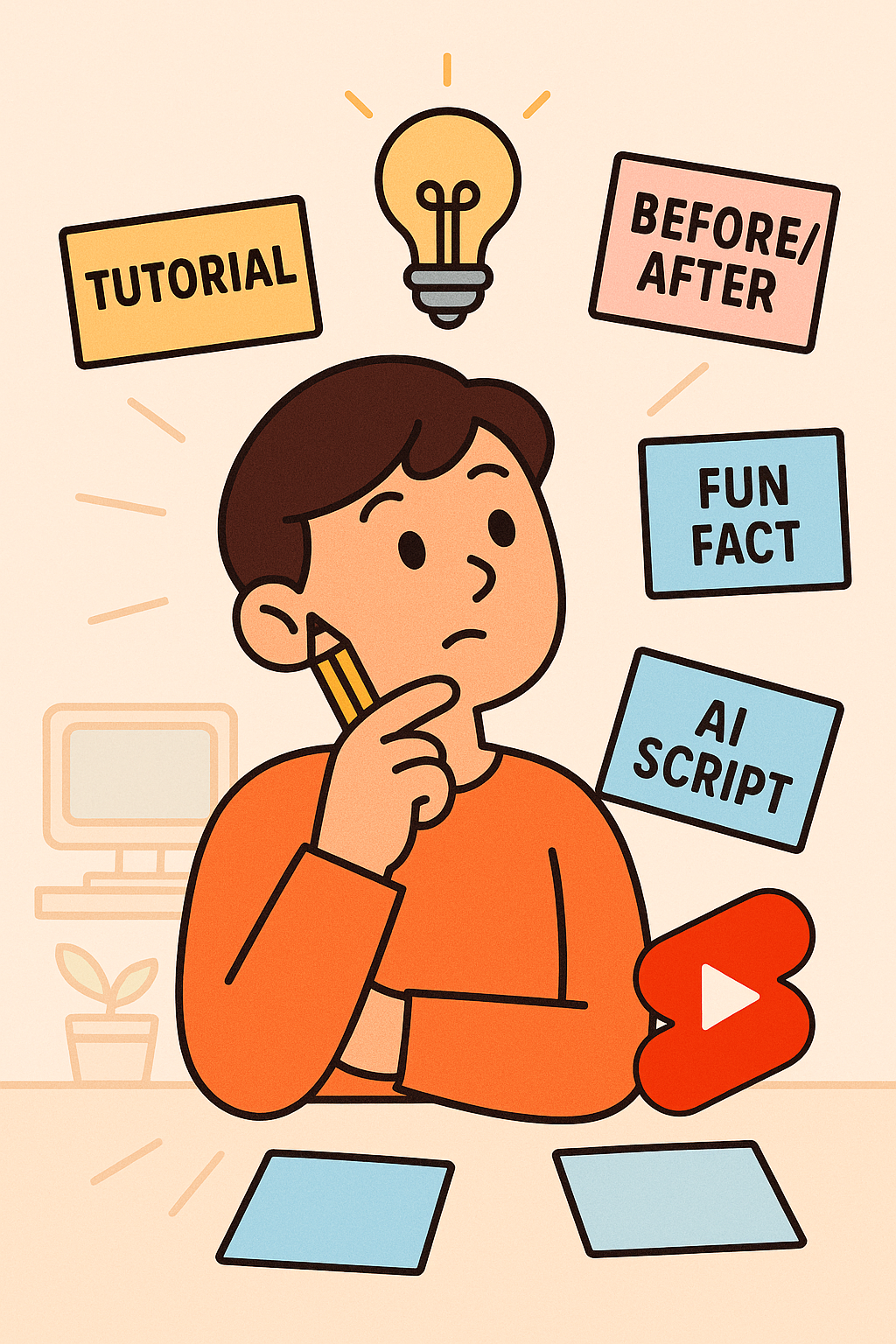
- Pick a Simple Idea: Shorts work best with a single, focused idea or tip. For example, a quick tutorial, a before-and-after demo, or a fun fact.
- Use Trends for Inspiration: Look at trending Shorts or TikTok/Reels challenges for ideas you can recreate or put your own spin on. (Just ensure your take is original or adds value.)
- Leverage AI for Brainstorming: You can use AI writing tools to help generate ideas or even draft a script. For instance, RWTN is a Korean AI content assistant that provides templates for blogs, social media, YouTube scripts and more. You simply choose a template (e.g. “YouTube Script”) and input a topic, and RWTN will auto-generate a written draft for you. This is great if you’re stuck or “막막” on how to start. Tools like ChatGPT or Google’s AI Studio can similarly help brainstorm titles, hooks, or outlines. Don’t be afraid to let AI spark some ideas – you can always tweak the output to fit your style.
By the end of planning, you should have a rough script or at least a clear idea of: what value your Short will provide, and what visuals you need to create.
Step 2: Create Visuals with AI Image Generation
No camera? No problem! You can generate amazing images or graphics for your video using AI image generators. Modern AI tools (like Stable Diffusion, MidJourney, or DALL·E) can create artwork or scenes from just a text description, known as a prompt. Here’s how to get started:
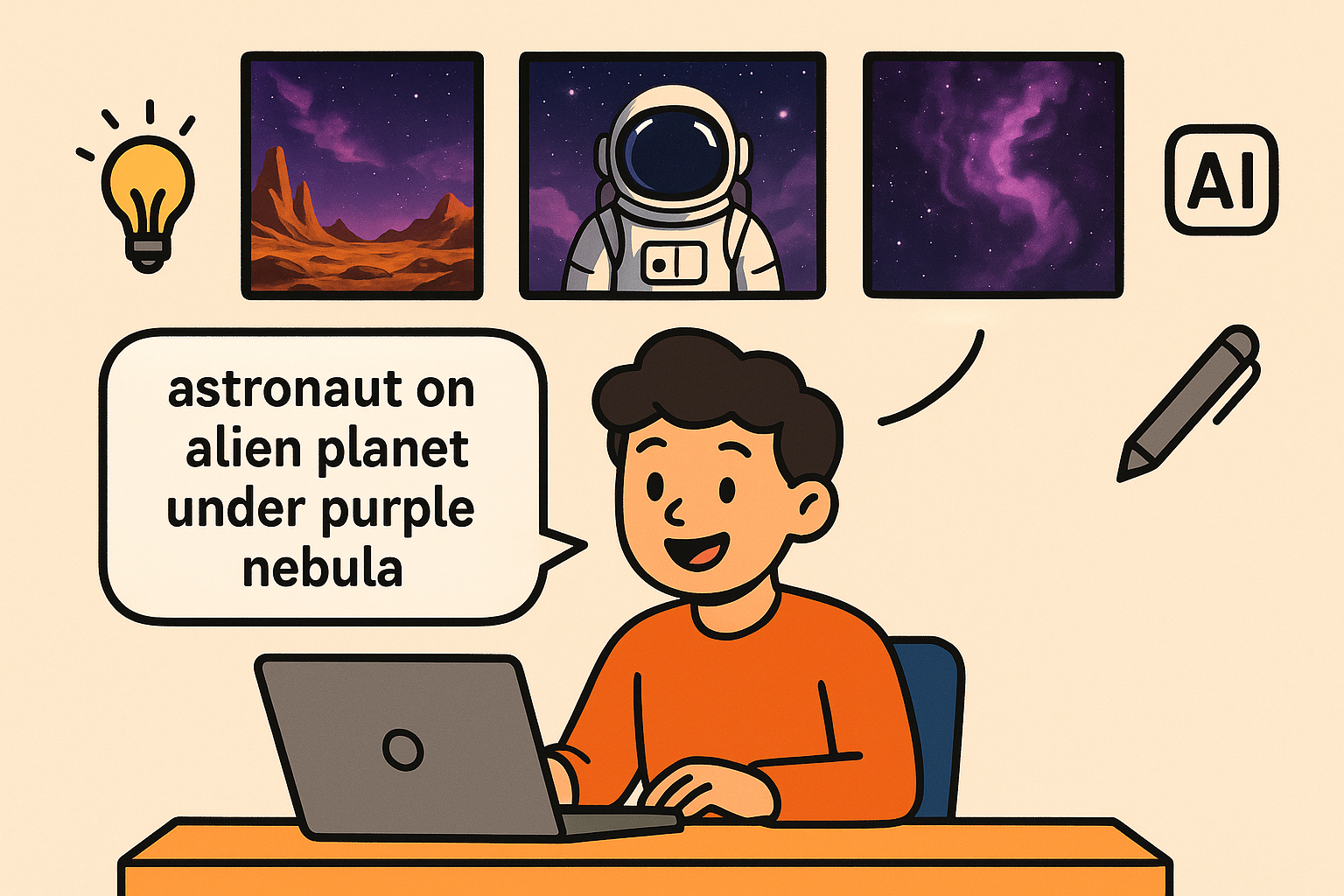
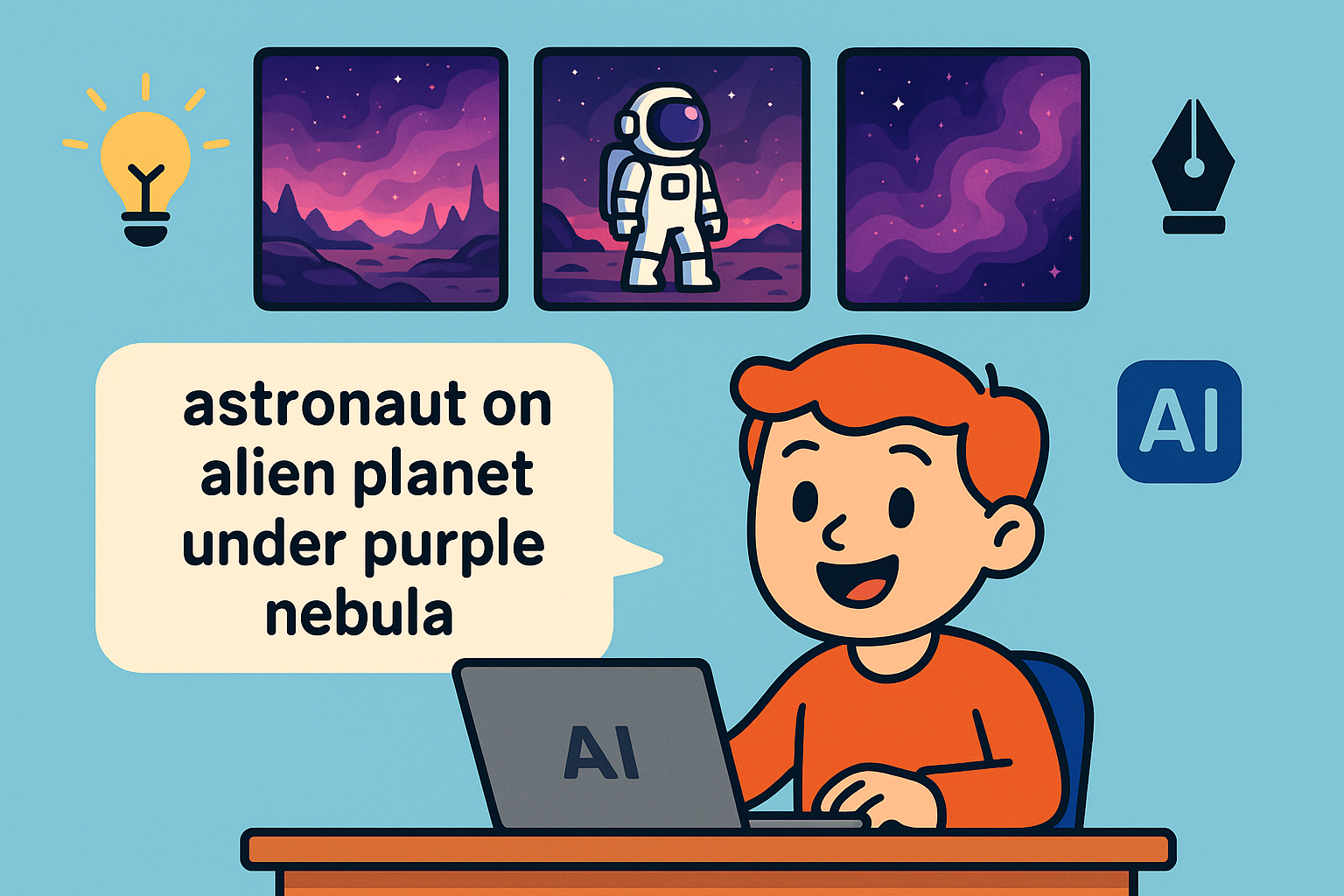
- Craft a Good Prompt: The key to getting the image you imagine is describing it in detail. Include the subject, what they are doing, background setting, lighting, camera angle, and art style if relevant. Basically, paint a picture with words. It helps to write prompts in natural descriptive sentences, as if you’re describing a scene to someone who can’t see it. For example, instead of just “astronaut on alien planet”, you might say: “A young male explorer in a futuristic spacesuit stands confidently on a rocky alien cliff under a sky filled with a giant purple nebula and two moons. Dust and asteroid particles drift in the background. Wide-angle low shot with dramatic side lighting casting deep shadows, in a cinematic sci-fi art style.” This detailed prompt gives the AI plenty to work with.
- Use Prompt Libraries/Generators: If you’re unsure how to word your prompt, you can get help online. Websites like OpenPrompt (prpt.ai) host a community library of prompts for various AI image tools – you can search for examples or even use their prompt generator. Another handy site is imageprompt.org, which can take an existing image and suggest a text prompt describing it (useful to learn the style of prompt writing). These resources can guide you to structure your prompts effectively.
- Generate the Image: Many AI image generators are available. For beginners, try free options like Stable Diffusion (which you can access via web apps or Colab notebooks), or free credits on services like Bing Image Creator. Since the above prompt is quite detailed, the AI should output something close to your vision. Feel free to regenerate or tweak the prompt (adding or removing details) until you get an image you like.
- Alternative: Stock Libraries: If AI doesn’t get the exact image you want, or you need a more realistic clip, you can also find free images or short clips on stock sites like Pixabay. Pixabay offers a huge library of royalty-free images, videos, and even music that you can use without attribution. Sometimes a good stock photo or video plus a bit of editing can do the job, and it’s completely free to use.
By the end of this step, you should have one or more images that will form the visual basis of your Short. For example, if you’re doing a quick travel tip, you might have an AI-generated scenic background; if it’s a mini how-to, perhaps an AI image of a person demonstrating something. Now, it’s time to bring these still images to life!
Step 3: Animate Your Images for Video Motion
Static images alone can be a bit dull for a video. The good news: you can animate your AI images easily, creating short video clips from them. There are two main approaches here – you can use a mobile app to manually add motion, or use an AI image-to-video tool that automatically animates the photo. We’ll cover both:
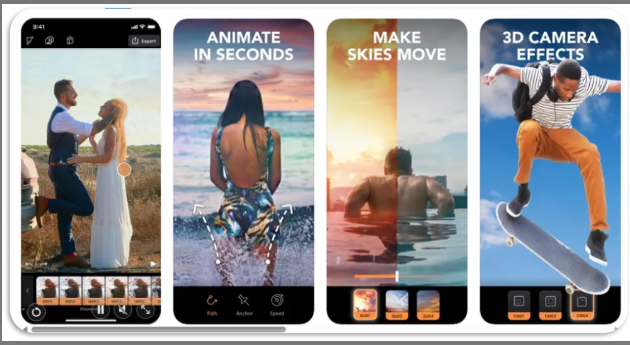
Motionleap mobile app preview – it lets you animate still photos in seconds, make parts of the image move (like skies or water), and even add 3D camera effects for depth.
Option A: Photo Animation Apps (Manual Control) – A popular and beginner-friendly app is Motionleap by Lightricks. With Motionleap (available on iOS/Android), you import your photo and then use simple tools to add movement: for example, draw an arrow path to indicate where something should move, and anchor parts that should stay still. You can animate elements like flowing water, moving clouds, or hair blowing in the wind. The app also offers “Elements” overlays (like moving sparkles, smoke, or rain you can add on top of your image) and 3D camera motion effects (simulating a slow zoom or pan for depth). You have full control to adjust speed, direction, etc., and you can preview the result. With a few taps, you’ll have a lively animated clip from your once-static image. Motionleap even has one-click presets for camera movements (e.g. zoom in, pan, tilt) and dynamic effects – so feel free to experiment. Once it looks good, export the animation as a video (MP4).
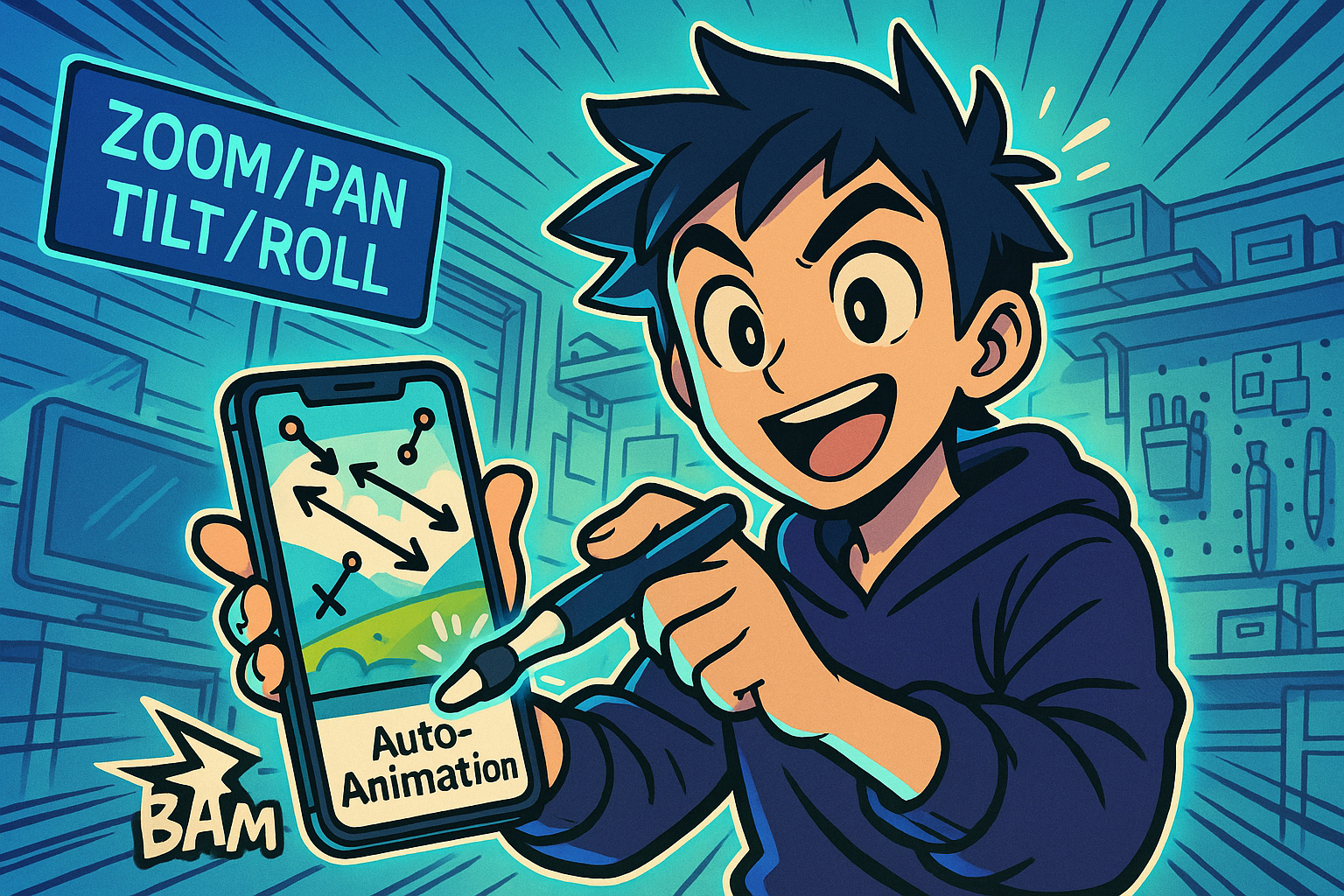
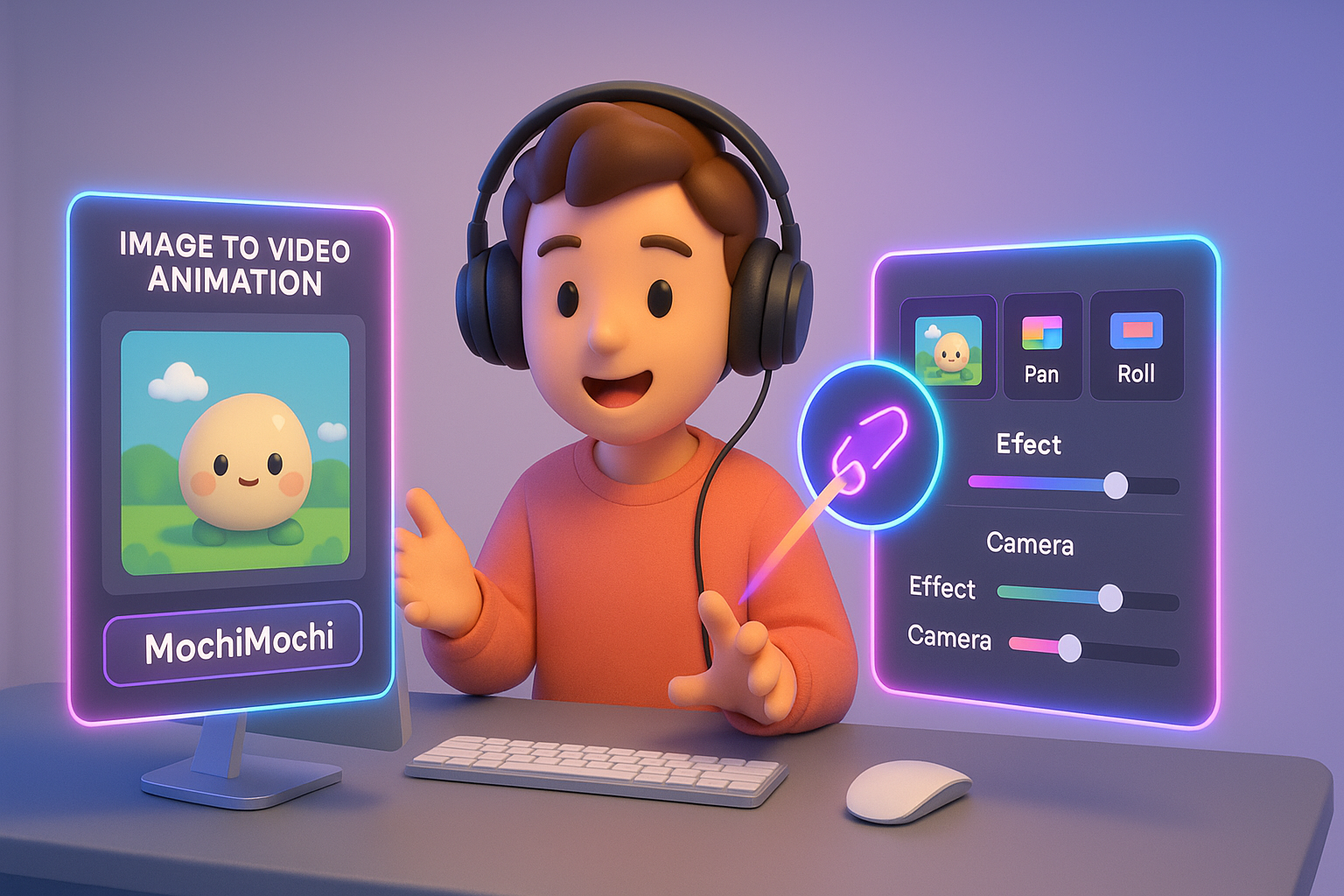
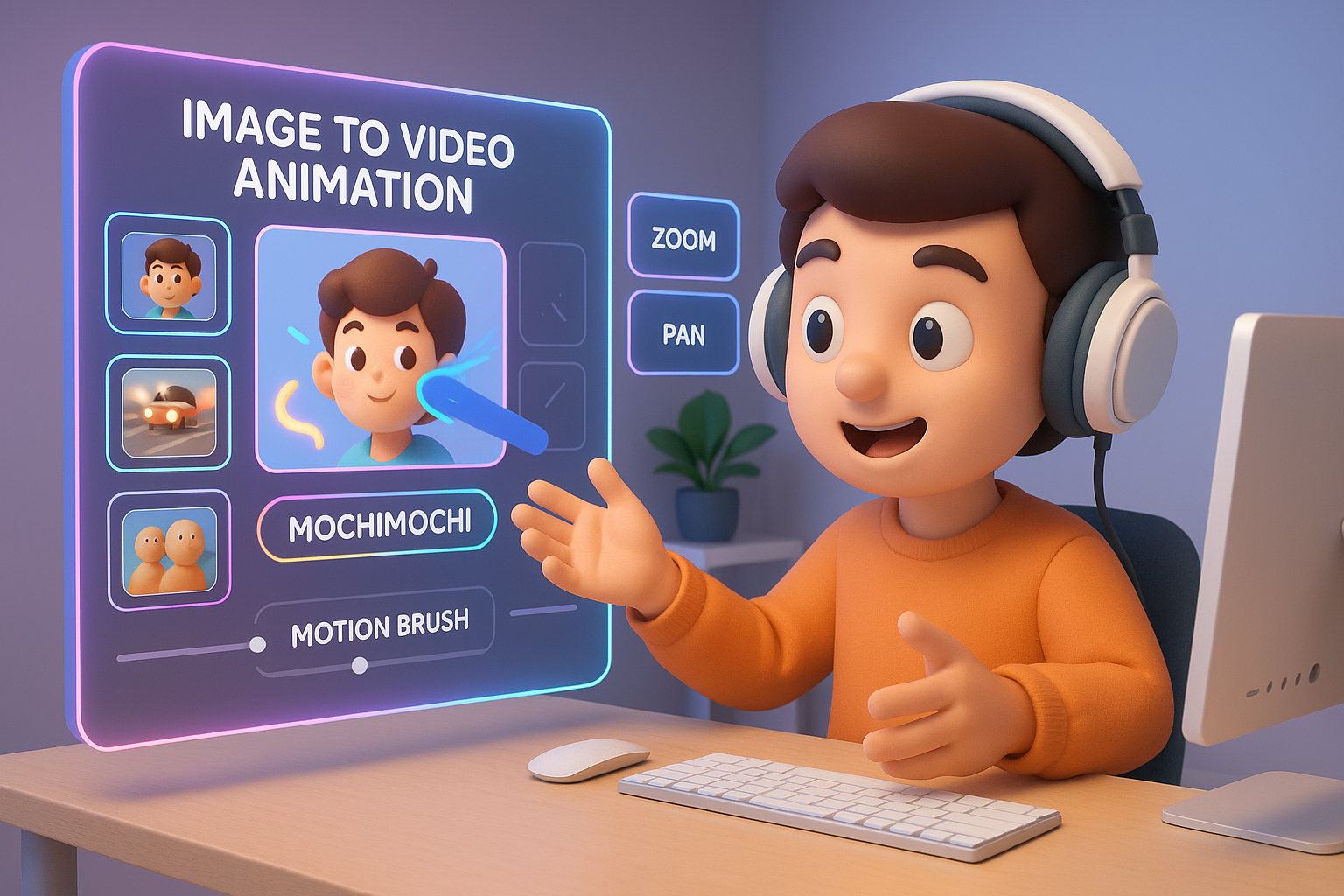
Option B: AI Image-to-Video Tools (Automated) – If you want to animate with even less effort, AI can do it for you. New AI video generators like Kling AI (available via sites like Pollo AI or Pixfy) let you upload an image and apply preset motion effects. For instance, Kling/Pixfy has a fun “MochiMochi” effect – a kind of squishy pulsation that brings life to an image in a quirky way. These tools often also support adding camera movements (zoom, pan, roll) or even a “motion brush” where you roughly indicate which direction parts of the image should move, and the AI handles the rest. The advantage here is speed – you might just pick an effect template and instantly get a video. The disadvantage is less fine control compared to doing it manually, and some effects might not fit every image. Many of these AI video generators are evolving fast; some require sign-up or credits, but they often have free trial credits. As an example, one could upload an image to the Pixfy AI image-to-video converter, choose MochiMochi, and get a quick animated result without even needing a text prompt.
Tip: You can use a combination of both approaches. For instance, use an AI tool to get a base animation, then refine it in an app like Motionleap, or vice versa. The goal is simply to have short video segments (maybe a few seconds each) that will make up your Short. If you have multiple images/scenes, animate each one accordingly.
By now, you should have your visuals in motion – perhaps a 5-second clip of your AI-generated scene with a slow zoom, or a looping animation of a character. Next, we’ll add audio to make it truly engaging.
Step 4: Add Voiceover with AI Dubbing
A voiceover can greatly enhance your Short, especially if it’s instructional or storytelling. You might be camera-shy or just prefer not to record your own voice – that’s completely fine. AI has you covered here as well! You can generate a natural-sounding narration using text-to-speech technology.
One powerful free tool for this is NAVER CLOVA Dubbing. CLOVA Dubbing is a service that turns your written text into spoken audio with a variety of AI voices (different ages, genders, even languages). For example, you can choose a friendly young female voice for an upbeat explainer, or a deep male narrator voice for something dramatic. Simply take the script you wrote in Step 1 (or write a short narration that matches your visuals) and input it into Clova Dubbing. Within seconds, it will generate an audio file of the voiceover. You can adjust the speed or pitch if needed, and when satisfied, download the audio file (usually MP3).
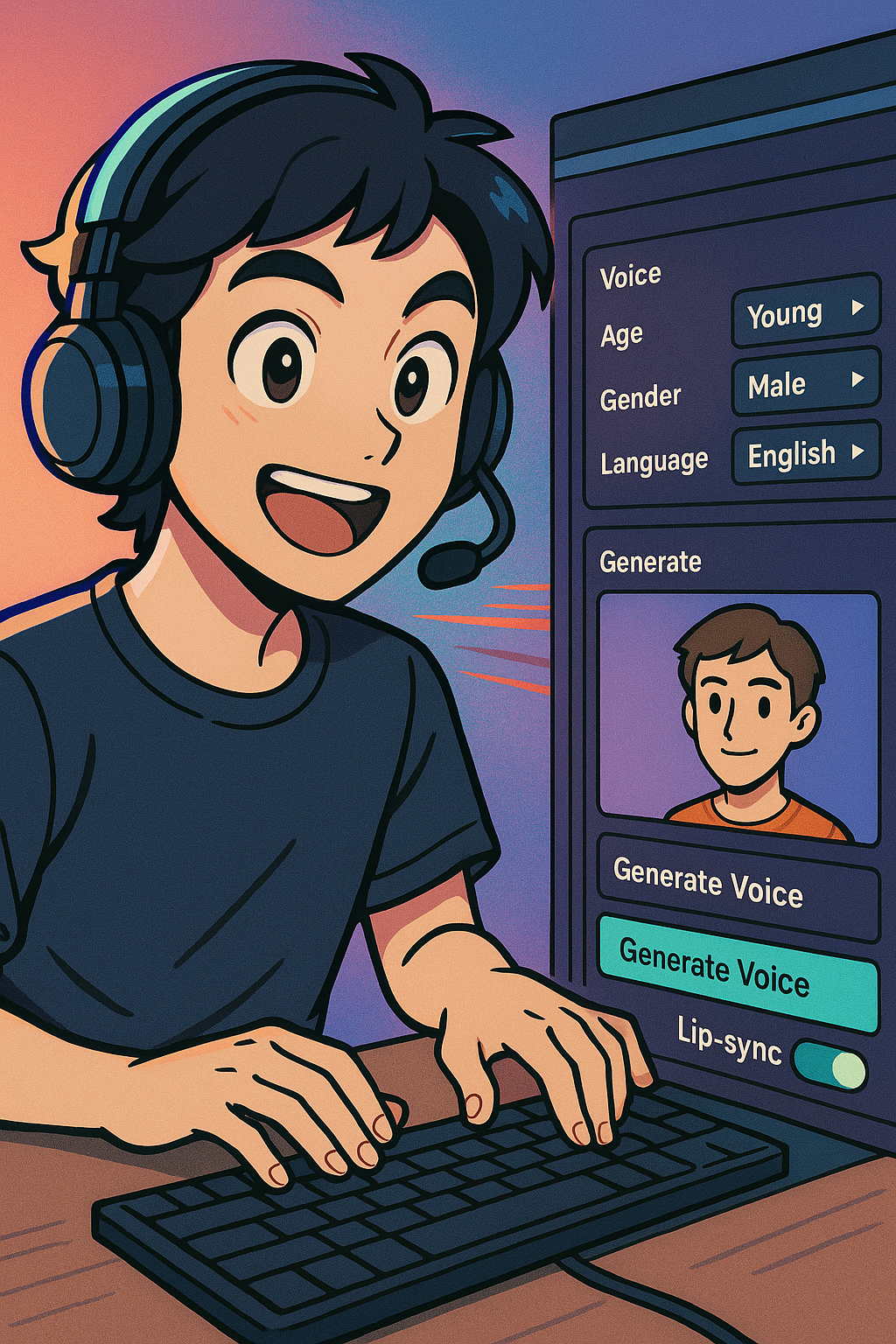
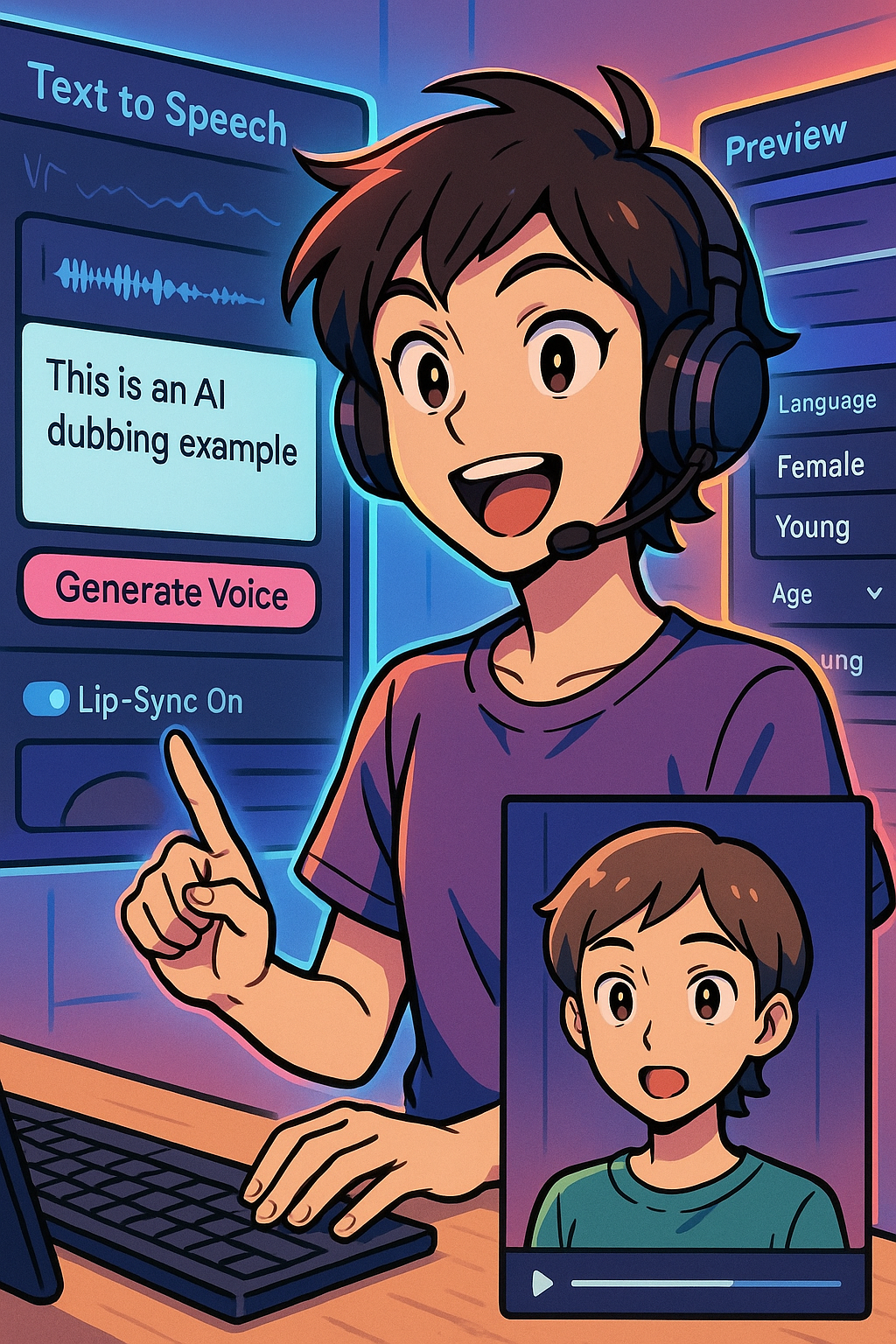
Now, if your Short doesn’t involve a person speaking on camera (e.g. it’s mostly B-roll visuals or graphics), you can just use this AI voiceover as the narration over your video. However, what if your video shows a character or person that is talking? In that case, you might want to lip-sync the video to the AI voice. This is an advanced trick: essentially, use tools to make the on-screen person’s mouth move in time with the audio. Some AI platforms (like the Kling AI we mentioned) have a lip-sync feature built-in, or you can use specialized tools (e.g. Wav2Lip, D-ID, or HeyGen) that take a photo/video of a face and animate the lips to match any speech. For beginners, lip-syncing can be a bit technical, so don’t worry if you skip it – it’s optional. If you do have a talking avatar or character, know that these AI services exist to do the heavy lifting of matching mouth movements to your Clova-generated voice. Otherwise, you can simply use the voiceover as a narrator over visuals (no talking head needed).
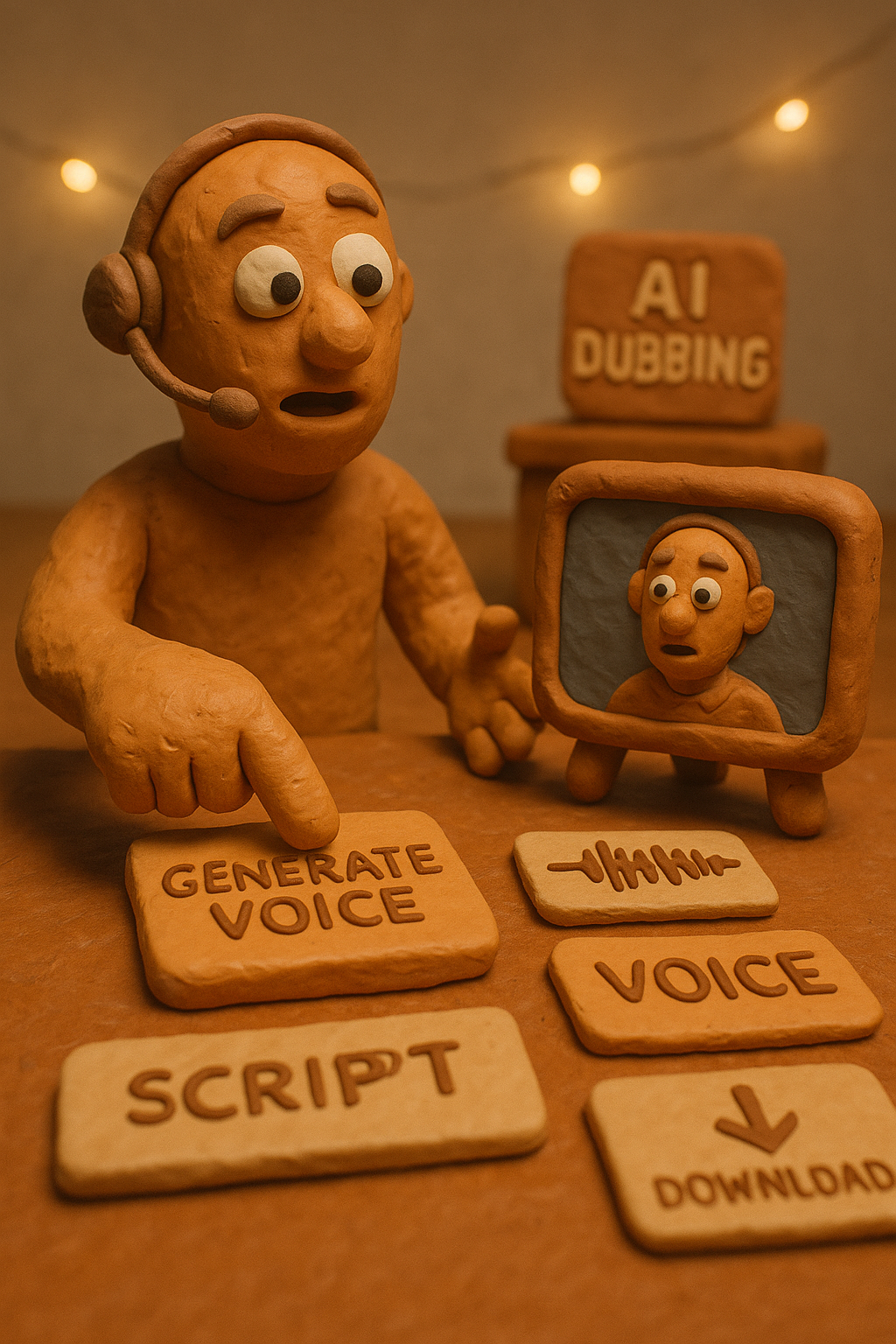
To summarize this step: generate your audio narration using Clova Dubbing (or a similar TTS service). It’s quick and free for reasonable usage (Naver provides a monthly quota for free users). Once you have the audio file, we’ll incorporate it in the final edit.
Step 5: Edit and Assemble the Short in Clipchamp
Now it’s time to put everything together – visuals, voiceover, and maybe some background music or text – and craft the final Short. A beginner-friendly editing tool we recommend is Clipchamp. Clipchamp is a free, web-based video editor (now owned by Microsoft) with a simple timeline interface and plenty of templates and effects, perfect for assembling a short video.

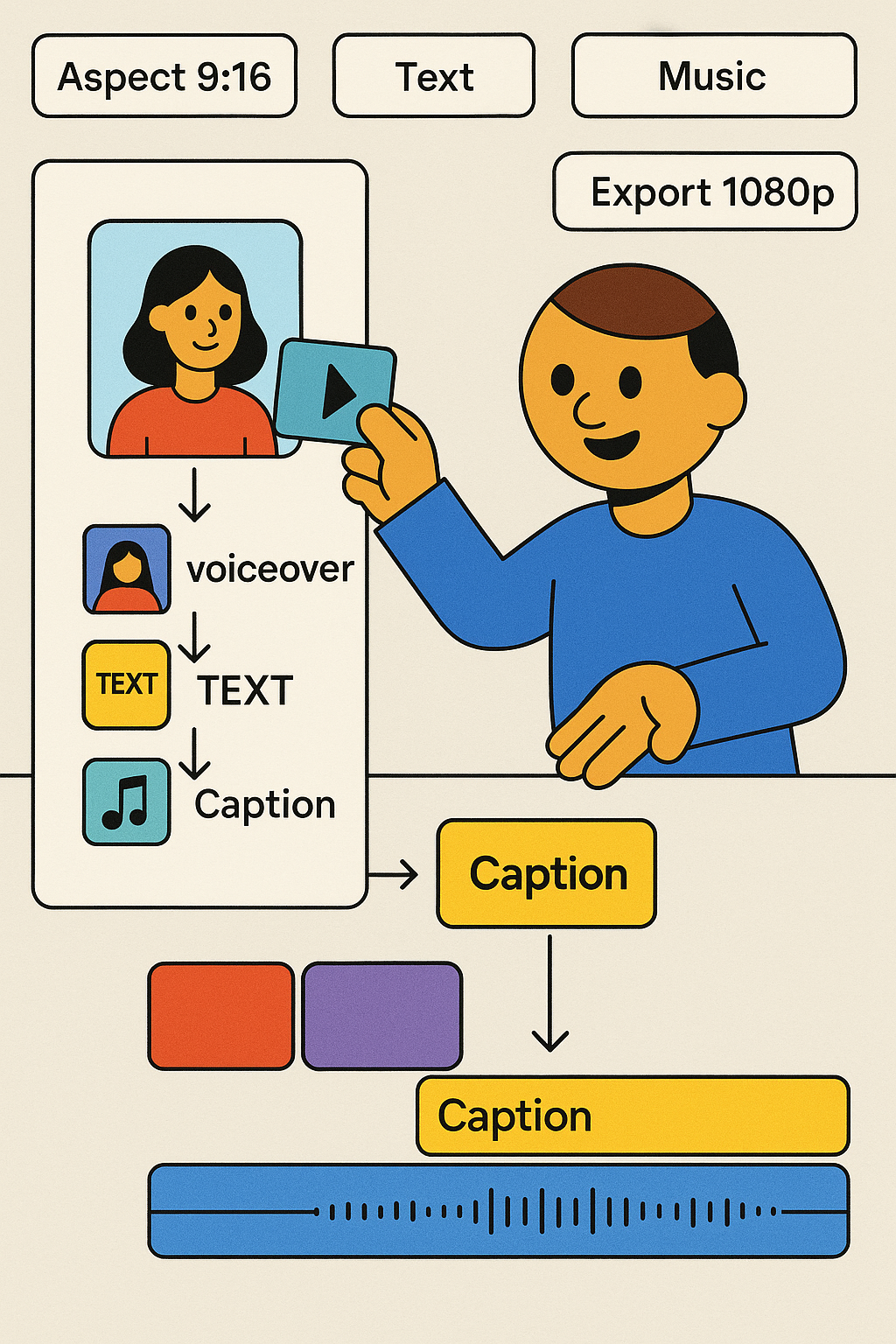
Here’s how you can compile your Short using Clipchamp (or a similar simple editor):
- Start a New Project: Set the aspect ratio to 9:16 (portrait), since Shorts are vertical videos. Import the animated clips you created (the outputs from Motionleap or Pixfy) and your voiceover audio file (from Clova). Also import any other assets you need, like a background music track or a logo (if using). Clipchamp lets you drag-and-drop files in easily.
- Arrange the Clips on the Timeline: Order your video clips in the sequence you want them to play. Trim their lengths if needed (you likely want to keep the total under 60 seconds). If you have multiple scenes, think about adding quick transitions or jump-cuts between them to keep the pace snappy.
- Add Text and Captions: It’s often a good idea to include text on screen in Shorts, since many viewers watch without sound. You can add a catchy title or use captions/subtitles for your voiceover. Clipchamp has text tools – choose a clear, large font and make sure the text is readable against the video (use outlines or a background if needed). For example, if your Short is a tip about video creation, your opening text might say “🎬 3 Video Creation Tips for Beginners”.
- Include Background Music (Optional): A background music track can add energy to your Short. Just be sure it doesn’t overpower your voiceover. You can find free music on Pixabay as well – tons of royalty-free tracks in various moods. Download a short music clip, import it to Clipchamp, and place it on the audio track below your voiceover. Adjust the volume to about 10-20% so it stays subtle beneath narration. (Pro tip: YouTube’s own Audio Library is another source of free music and sound effects.)
- Fine-tune and Export: Play back the whole Short in the editor. Ensure the voiceover aligns well with the visuals (you may need to adjust the timing of clips to sync with what’s being said). Cut out any dead air or overly long pauses. Keep the pace engaging – every second counts in a Short. Once happy, export the video (Clipchamp will let you export in 1080p which is ideal).

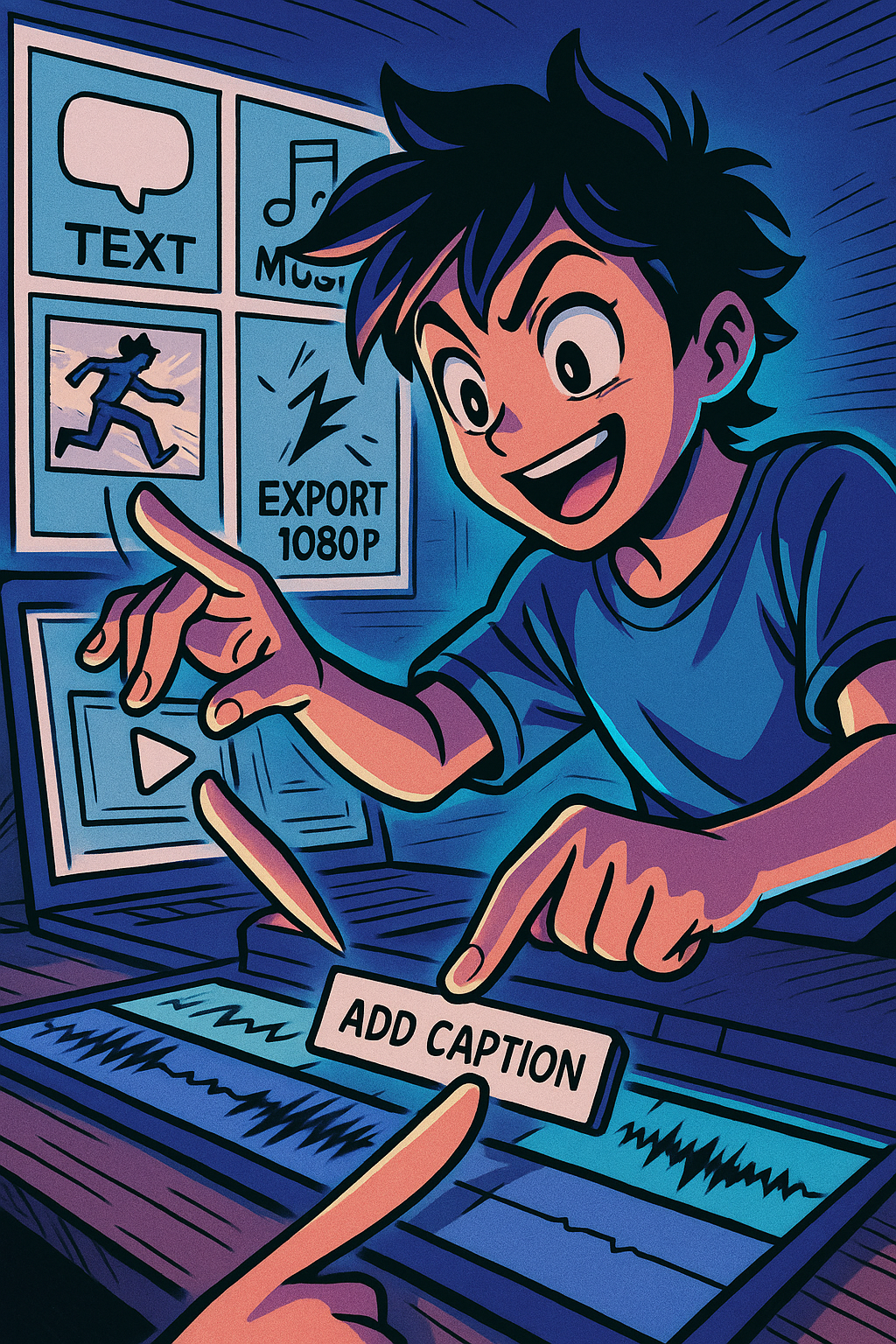
After exporting, watch the video on your phone to double-check everything looks good in vertical format. Congrats – you’ve now got a finished Short video file!
Step 6: Uploading and Publishing Your YouTube Short
The final step is getting your creation onto YouTube for the world to see. If you have the YouTube app on your phone, you can upload the Short directly from your device. In the YouTube app, hit the + (Create) button and select “Create a Short” or “Upload a video” (then it will classify under 60s vertical videos as a Short). Add a catchy title (and consider a few relevant hashtags in the title or description, like #Shorts #AI if applicable). Choose a thumbnail or let YouTube pick a scene – thumbnails aren’t as critical for Shorts, but you might select a frame that looks interesting.
If you prefer scheduling the post or doing it on desktop, YouTube Studio allows that as well. You could also use a social media scheduling tool like Buffer to plan your Shorts release. In fact, Buffer now supports direct scheduling of YouTube Shorts, complete with content planning tools. Using Buffer, you can set your Short to go live at an optimal time (say, when your target viewers are most active) without manually hitting publish. This is handy if you want to prepare multiple Shorts in advance. Buffer’s scheduling can even help you auto-post the same video to other platforms (like posting your Short to an Instagram Reel or TikTok) to maximize reach.
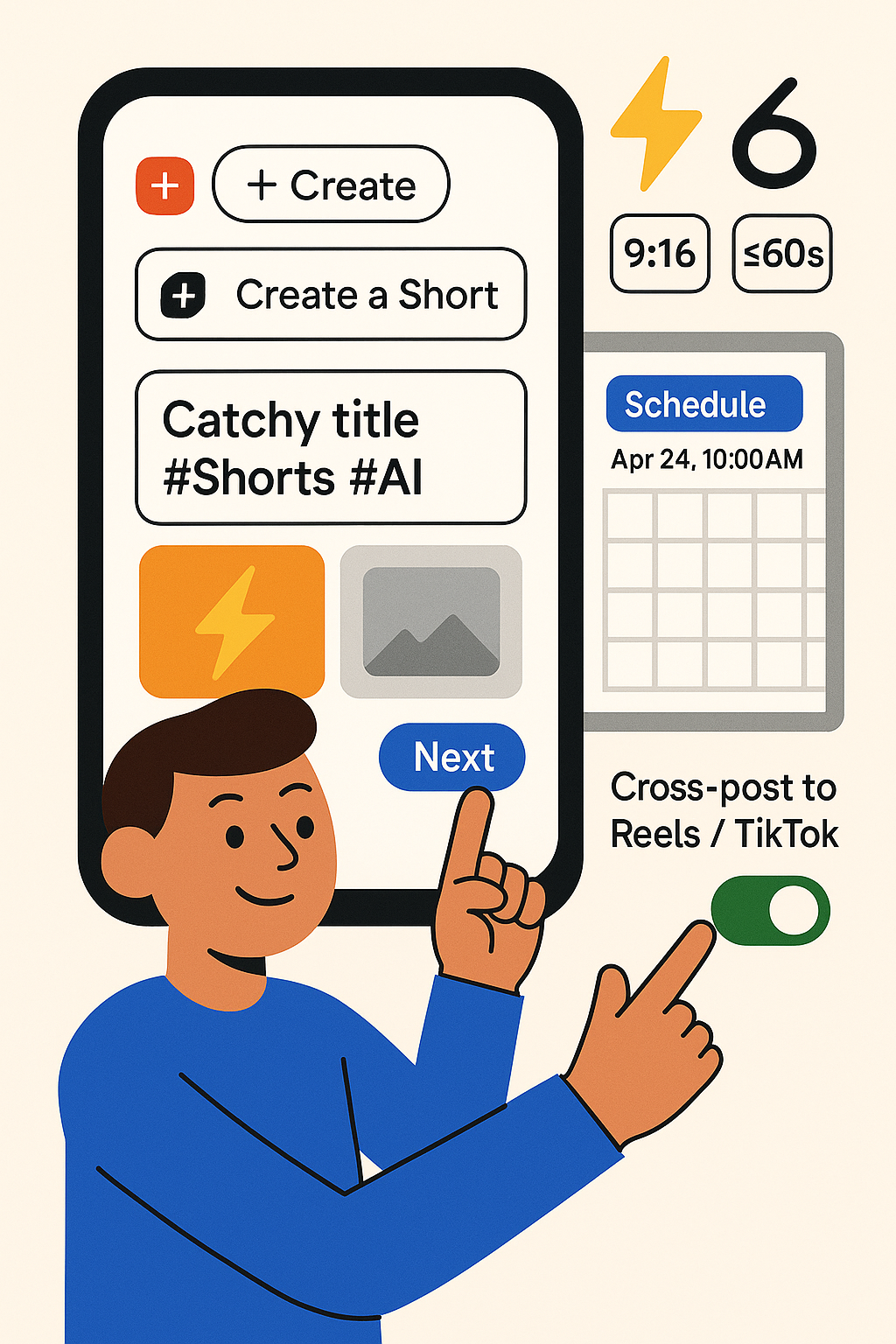
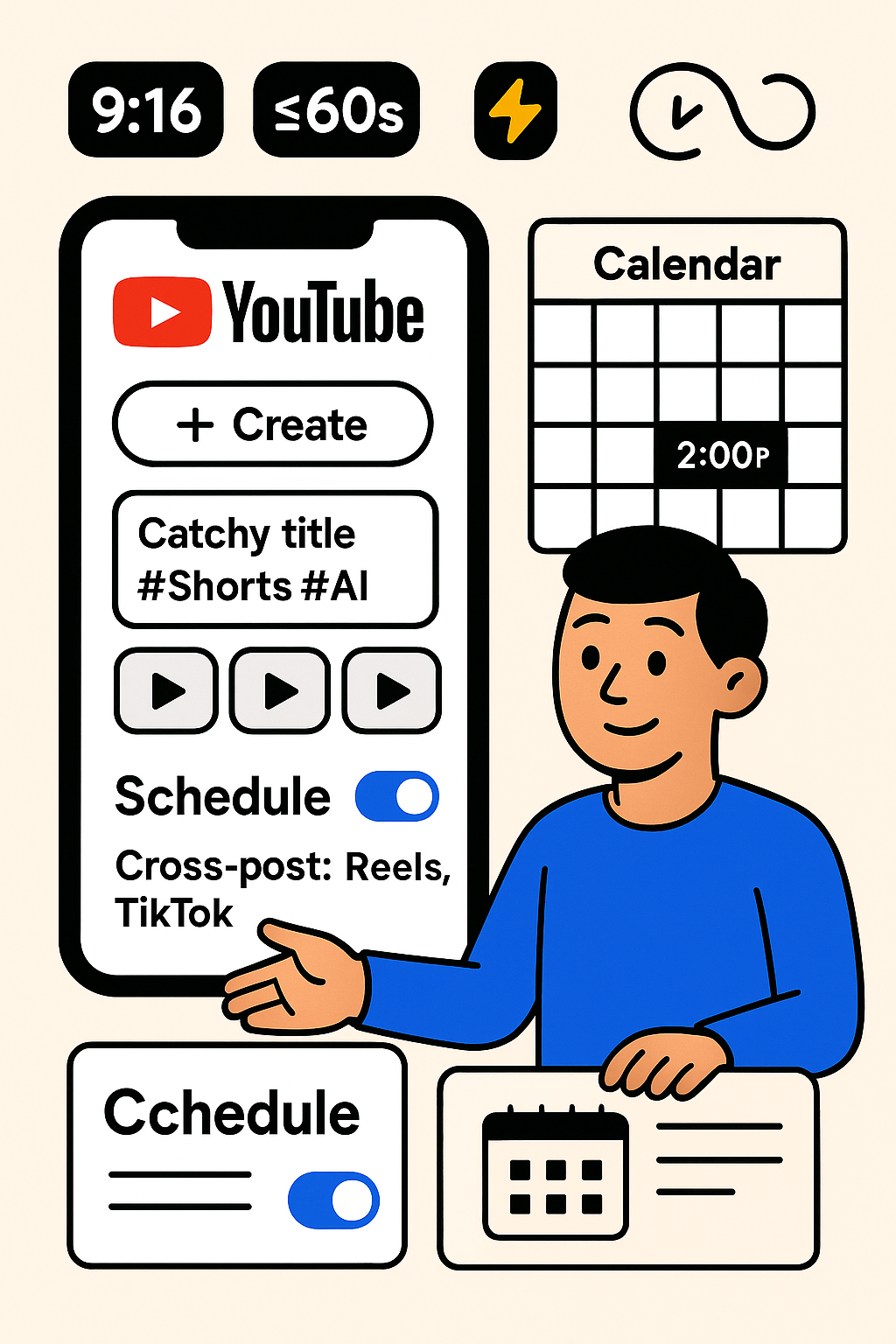
One more thing: take note of YouTube Shorts best practices. Shorts thrive on immediacy and looping. Make the first seconds super captivating (hook the viewer early), and consider ending in a way that loops seamlessly or encourages re-watch. Since Shorts replay automatically, a clever loop can boost your views. Also, keep it vertical and under 60 seconds (YouTube will categorize any vertical video ≤60s as a Short).
Conclusion and Next Steps
Congratulations – you’ve gone from a blank slate to a published YouTube Short! 🎉 In this guide, we covered how to plan content, generate custom images using AI prompts, animate those images into videos, add voice narration with AI, and edit everything together, all with beginner-friendly tools. The barrier to entry for video creation is lower than ever thanks to these AI-powered aids. As a newbie, you can produce Shorts that look and sound professional without expensive gear or prior editing skills.
Going forward, keep experimenting and learning. Try different types of Shorts: educational tips, behind-the-scenes glimpses, funny skits – see what resonates with your audience. Use analytics (YouTube provides insight on views, likes, retention) to refine your approach. And don’t hesitate to explore more tools as you grow, be it advanced editors or other AI generators for visuals and audio. The process you learned here can be a template for future projects: imagine -> prompt -> create -> animate -> narrate -> share. Now, go unleash your creativity on Shorts – the world is waiting for your mini masterpiece. Good luck, and happy creating! 📱✨
Sources:
- Let’s Enhance AI Blog – Guide to writing effective AI image promptsletsenhance.ioletsenhance.io
- Perfect Corp – 6 Easy Ways to Animate Still Images (Motionleap overview)perfectcorp.com
- Pixfy AI – Image-to-Video tool (MochiMochi effect)pixfy.io
- NAVER Clova – AI voice dubbing service descriptioncoolai.app
- OpenPrompt (프롬프트 라이브러리) – Prompt library for AI image generationprpt.ai
- Buffer Help Center – YouTube Shorts scheduling now availablesupport.buffer.com
- Pixabay License – Free use of royalty-free images, videos, musicpixabay.com
- RWTN AI 소개 – Korean AI writing assistant with templates1sister.langsamsister.com1sister.langsamsister.com
- Pallyy Blog – YouTube Shorts guide (audience stats & tips)pallyy.compallyy.com